Overview
EasyEcom reports provide information about sales, orders, returns, inventory, warehouse activities, goods received, taxes, payments, and system integrations.
Use the Report Finder below to identify the report that matches your task. Report fields and filters vary by report.
Navigation: Reports > Reports Dashboard
Find the Right Report
| What do you need to do? | Report to use |
|---|
| Download sales data | Sales Details |
| Check stock movements for one SKU | Inventory Ledger Report |
| Compare opening stock, movements, and closing stock | Inventory Reconciliation Report (Beta) |
| Check detailed inventory records | Full Inventory Report |
| Check consolidated inventory quantities | Consolidated Inventory Report |
| Check inventory recorded for an earlier date | Historical Inventory Snapshot |
| Review inventory planning calculations | Inventory Planning KB |
| Check goods received against purchase orders | New GRN Report |
| Check stock waiting to be put away | Pending GRN PutAway, Pending Returns PutAway, or Pending Cancellation PutAway |
| Check recorded putaway activity | Putaway Activity Report |
| Check sales or return tax details | TAX Report |
| Check B2B customer returns and Credit Note details | B2B Customer Return Report |
| Check initiated returns | Initiated Return Report |
| Check returns awaiting warehouse receipt | Pending Returns Report |
| Check completed returns | Completed Returns Report |
| Check return or cancellation details by item | Item Wise Return Report or Item Wise Cancel Report |
| Check B2B return challans | B2B Return Pending Report |
| Check cycle-count results | Cycle Count Report |
| Check extra stock found during cycle count | Cycle Count: Inwardable Quantity Report |
| Check stock adjustments made during cycle count | Cycle Count Adjustment Report |
| Check consolidated cycle-count data by bin | Cycle Count: Consolidate Bin Wise Report |
| Check wall-to-wall stock-count activity and differences | Cycle Count Wall to Wall Report |
| Check items that were short-picked | Short Picking Report |
| Check stock or usage by unit of measurement | UoM Inventory Report, UoM Consumption Report, or UoM Detail Report |
| Check order age | Order Aging Report |
| Check order processing stages and timestamps | Order Lifecycle Report |
| Find orders that breached SLA | SLA Breached Report |
| Check cancelled orders | Cancelled Order Report |
| Check manifested orders | Order Manifest Report |
| Check inventory expiry dates | Inventory Expiry Report |
| Check how long stock has been stored | Inventory Aging Report |
| Check B2B dispatch details | B2B Handover/Dispatch Report |
| Check stock transfers not yet received at the destination | In-Transit STN Order Report |
| Check invoice synchronisation with ERP | ERP Sales Invoice Sync Status Report |
| Check Credit Note synchronisation with ERP | ERP Credit Notes Sync Status Report |
| Compare order, settlement, and payment information | Payment Reconciliation Report |
Downloading Reports
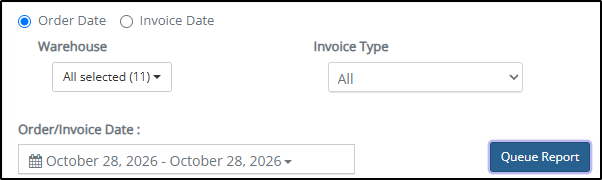
Select the report and enter the required filters.
Click Submit or Queue Report, as available in the report interface.
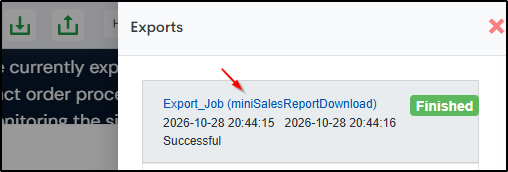
If the report is queued, open Exports and locate the report job.
Download the file when the job status is Finished.
The available actions depend on the report. Follow any report-specific instructions below when they differ from this process.
Major Reports
Sales and Order Reports
Sales Details
Use Sales Details to download sales data for the selected filters.
Choose Order Date to filter by order date or Invoice Date to filter by invoice date. These dates can differ, so the two options may return different results.
Avoid counting an order amount more than once. A report may contain several rows for one order, such as one row for each SKU. An order-level amount may repeat on these rows.
When calculating order-level totals, count each Order ID once. When calculating item-level sales, use the appropriate item-level values.
Other Order Reports
Order Aging Report: Checks order age.
Order Lifecycle Report: Shows order processing stages and timestamps.
SLA Breached Report: Identifies orders that breached SLA.
Cancelled Order Report: Shows cancelled orders and cancellation details.
Order Manifest Report: Shows orders that have been manifested for dispatch.
Inventory Reports
Inventory reports answer different questions. Some show inventory records, some show inventory at a previous point in time, and others explain how inventory changed during a period.
Inventory Ledger Report
Use the Inventory Ledger Report to check the opening inventory, closing inventory, and recorded movements for a selected SKU and date range.
The summary shows opening and closing inventory for the selected date range. It also lists inventory movement types and their adjustment quantities.
Movement types shown in the reviewed interface include GRN, Sales Count, Returns Count, Adjustment, Dekitting, Used in Kitting.
The movement types and quantities displayed depend on the inventory activity recorded for the selected SKU and date range.
Use the download action beside a movement type when available. Each downloadable file contains details for that movement type. Available columns differ by movement type.
Use Inventory Ledger to investigate movements for a particular SKU. Use Inventory Reconciliation to compare opening stock, recorded movements, and closing stock across SKUs. For related instructions, see Inventory Ledger Report / Inventory Reconciliation.
Inventory Reconciliation Report (Beta)
Use Inventory Reconciliation to review opening stock, inventory movements, and closing stock for each SKU over a selected date range.
It helps you investigate how recorded movements contributed to closing stock and identify possible differences between inventory records.
The report includes SKU and product details, opening and closing stock quantities and timestamps, and movement fields such as GRN Stock, Sales, Returns and Cancellations, Physical Kits Produced, Physical DeKits Produced, Used in Kitting, and Available--Expiry. It also includes Sales With Inventory and Sales Without Inventory classification fields.
Opening stock and closing stock
The opening stock represents the inventory balance at the beginning of the selected period. The closing stock represents the inventory balance at the end of the selected period.
Use the following calculation with the movement fields in the reviewed export:
Closing Stock = Opening Stock + GRN Stock + Sales + Return/Cancel + Physical Kits Produced + Physical DeKits Produced + Used in Kitting + Available--Expiry
Use each movement value with the positive or negative sign shown in the export.
Important: Sales with Inventory and Sales without Inventory are additional sales-classification fields. Do not add them again to the calculation when the salemovement is already included.
Sales With Inventory and Sales Without Inventory
The reports includes these fields to classify sales records. Do not add these quantities separately to the closing-stock calculation when the Sales movement already accounts for them.
Cross-checking reconciliation data
| What are you checking? | Where to check |
|---|
| Opening stock | Historical Inventory Snapshot for the relevant warehouse and timestamp |
| GRN movement | GRN report and, where relevant, Putaway Activity Report |
| Sales movement | Sales Details or TAX Report, depending on the transaction being checked |
| Returns and cancellations | Relevant return or cancellation records and Putaway Activity Report, where applicable |
| Expiry-related movement | Available--Expiry field and related inventory records |
| Closing stock | Opening stock and signed movement values in the reconciliation export |
Before treating a difference as an error, confirm that the reports use the same SKU, warehouse, date range, inventory category, and relevant timestamps.
Historical Inventory Snapshot
Use Historical Inventory Snapshot to review inventory recorded for an earlier date or compare a historical inventory position with the Inventory Reconciliation Report.
A snapshot records inventory at a particular point in time. It is not the same as a movement report covering a period.
Open the Inventory Snapshot history screen.
Select the required warehouse and date range.
Click View Snapshot.
Find the relevant snapshot run. Check Queue Date (when the job was queued) and Finish Date (when it finished).
Click Generate Snapshot for that run, then download and review the resulting file.
Use the snapshot for the relevant warehouse and timestamp when checking the opening or closing stock in Inventory Reconciliation.
The opening-balance check may use these inventory categories:
Opening Balance = Reserved (Not Picked) + Reserved (Picked) + Available Quantity + Available Quantity (Bin Locked)
Use this calculation only when the snapshot contains these categories and they match the scope of the reconciliation being checked. Confirm the warehouse, SKU, timestamps, and inventory categories before treating a difference as a discrepancy.
Full Inventory versus Consolidated Inventory
Both reports show inventory, but they serve different purposes.
| Report | Main purpose |
|---|
| Full Inventory Report | Detailed inventory records, including product, receiving, cost, location, status, and serial or IMEI information where available. |
| Consolidated Inventory Report | Consolidated inventory quantities across statuses, with location and shelf-life information. |
Use Full Inventory when you need detailed inventory records. Use Consolidated Inventory when you need a consolidated stock view.
The exact fields available depend on the report export.
Status Wise Stock Report
Use Status Wise Stock Report to review inventory quantities grouped by stock status.
Bin Wise Stock Report
Use Bin Wise Stock Report to review inventory stored in warehouse bins.
The reviewed interface requires a stock-status filter with these options:
Available & Reserved
Repair
Damaged
Quarantine
Select the status that matches the inventory you need to review, then queue the report.
Inventory Expiry Report
Use Inventory Expiry Report to review batch expiry dates and related inventory information.
Inventory Aging Report
Use Inventory Aging Report to review how long inventory has been stored. Use Inventory Expiry Report when you need to check batch expiry dates. Inventory age and remaining shelf life are different measures.
Reserved Inventory Report
Use Reserved Inventory Report to review stock reserved against orders.
Reserved inventory should not automatically be treated as available stock. Check the reservation information and relevant order before using the quantity in an allocation decision.
QC Report
Use QC Report to review quality-check information associated with receiving, cancellation, or return transactions.
Check the transaction reference, SKU, pass or fail quantities, and recorded QC information available in the report.
Inventory Planning by Days
For Inventory Planning By Days and other inventory-planning reports, use the dedicated Inventory Planning KB.
GRN and Putaway Reports
New GRN Report
Use New GRN Report to review goods received against purchase orders and their associated inventory records.
When comparing purchase orders and GRNs, distinguish the PO ordered quantity from the GRN received quantity.
GRN Summary Report
Use GRN Summary Report to review GRN summary information and related actions.
Important: The Remove GRN action permanently deletes the GRN from EasyEcom. Do not select it when you only want to view or download GRN information.
Choose the correct Putaway report
| Report | What it shows |
|---|
| Pending GRN PutAway Report | Goods received through a GRN that are waiting to be put away. |
| Pending Returns PutAway Report | Returned stock that is waiting to be put away. |
| Pending Cancellation PutAway Report | Stock from cancelled orders that is waiting to be put away. |
| Putaway Activity Report | Recorded putaway activity, including transaction, bin, time, and user details. |
Putaway Activity delay: New entries can take approximately 30 minutes to appear in Putaway Activity Report. Check again after this delay before treating a missing entry as a stock discrepancy.
TAX and Return Reports
TAX Report
Use TAX Report to check SKU-level tax details for sales bills or return bills.
Available report types include:
The maximum download period is one month at a time.
When comparing sales quantities with Inventory Reconciliation, use the same reporting period and compare the relevant item quantities.
Choose the correct return report
| Report | What it shows |
|---|
| Initiated Return Report | Return requests that have been initiated. |
| Pending Returns Report | Returns initiated but not yet delivered to the warehouse. |
| Completed Returns Report | Returned items delivered to the warehouse and marked as returned in EasyEcom. |
| Item Wise Return Report | Return details for individual items, including putaway timestamps. |
| Item Wise Cancel Report | Cancellation details for individual items, including putaway timestamps. |
| B2B Return Pending Report | Return challans created against B2B orders. |
| B2B Customer Return Report | B2B customer-return details, including related GRN and Credit Note information. |
For return procedures, see How to Create Pending Returns and B2B Return Business Order.
B2B Customer Return Report
Use this report to review B2B customer returns and related GRN and Credit Note information.
A return appears in this report only after its Credit Note has been generated.
The report contains two types of amounts.
Credit Note totals
When a Credit Note contains multiple SKU rows, these totals appear only in the first SKU row for that Credit Note.
Item amounts
Use the Total_ fields for Credit Note totals and the Item_ fields for individual SKU amounts.
Do not add the Credit Note total again for every SKU row. This would count the same amount more than once.
Cycle Count, Picking, and UoM Reports
| What do you need to check? | Report |
|---|
| Cycle-count results | Cycle Count Report |
| Extra stock found during cycle count that can be inwarded | Cycle Count: Inwardable Quantity Report |
| Stock adjustments made during cycle count | Cycle Count Adjustment Report |
| Consolidated cycle-count data by bin | Cycle Count: Consolidate Bin Wise Report |
| Wall-to-wall stock-count activity and differences | Cycle Count Wall to Wall Report |
| Items that were short-picked | Short Picking Report |
| Picking and packing timestamps | Picker Packer Report |
| Stock by unit of measurement | UoM Inventory Report |
| UoM usage by order | UoM Consumption Report |
| UoM quantity details | UoM Detail Report |
For detailed steps, see Performing Cycle Count for Your Warehouse and HHT Picklist.
B2B, Stock Transfer, and Dispatch Reports
| Report | Purpose |
|---|
| Batch Wise B2B & STN Report | Provides item details for B2B and stock-transfer orders in Shipped status; financial information is excluded. |
| In-Transit STN Order Report | Shows inventory shipped through a stock transfer that has not yet been received at the destination. |
| B2B Handover/Dispatch Report | Provides details of B2B orders that have been dispatched or handed over. |
| B2B Detail Overview Report | Provides detailed B2B order and fulfilment information. |
| B2B Overview Report | Provides a summarized view of B2B orders and fulfilment details. |
| Production Order/Kit Order Report | Summarizes quantities used for production orders. |
| Order Manifest Report | Provides order and carrier information for orders manifested for dispatch. |
| Credit Note Report | Allows users to download Credit Note PDFs for available records. |
Other Reports
EasyEcom also provide reports for marketplace operations, ERP integrations, inventory adjustments, and payment reconciliation, depending on the account's enabled features.
| Report | Purpose |
|---|
| ERP Sales Invoice Sync Status Report | Reviews the synchronisation status of sales invoices with the ERP. |
| ERP Credit Notes Sync Status Report | Reviews the synchronisation status of Credit Notes with the ERP. |
| Payment Reconciliation Report | Provides information for comparing orders, settlements, and received payments. |
| Adjustment Task Report | Reviews inventory adjustment task information. |
| Inventory Adjustment Report | Reviews inventory adjustment information. |
| SKU Performance | Reviews SKU-level sales, cancellations, returns, and inventory-related performance. |
Common Checks When Comparing Reports
When two reports show different quantities, check the following before assuming that one report is incorrect:
SKU: Confirm the SKU matches.
Warehouse: Confirm the records refer to the same warehouse or location.
Date range: Check that both reports cover the same period.
Timestamp: Determine whether the records represent the same point in time.
Inventory status: Confirm that you are comparing the same category, such as Available, Reserved, Damaged, or Quarantine.
Transaction stage: Check whether the item is initiated, received, pending putaway, or completed.
Quantity sign: For reconciliation calculations, retain the positive or negative signs shown in the export.
Repeated totals: Check whether an order-level or Credit Note-level amount is repeated across multiple item rows before summing it.
Report scope: Confirm that one report is not a marketplace-specific, historical, consolidated, or item-level view while the other has a different scope.
A difference between reports is not automatically an inventory error. Complete these checks before escalating the discrepancy.
Related Articles
