Inward(GRN) Gate Entry
Overview
Inward Gate Entry is used to inward shipment boxes before GRN processing. Warehouse teams can:
- create inward entries against approved POs,
- generate inward box IDs,
- scan shipment boxes,
- perform box-level inwarding during GRN.
When to Use This Feature
Use Inward Gate Entry when:
- shipment boxes need to be inwarded before GRN processing,
- warehouse teams want box-level inward tracking instead of direct quantity inwarding,
- inward barcode scanning is part of the receiving process,
- vendor shipment box IDs need to be mapped with warehouse inward box IDs,
- dock-level inward receiving is followed before inventory intake,
- ASN-based inwarding workflows are being used.
Prerequisites
- Purchase Order (PO) exists in Approved state.
- ASN already exists (if ASN-based inwarding is enabled).
Required Settings
- inwarding happens through scanned box IDs,
- BOX ID becomes mandatory during sheet inwarding.
- warehouse can inward items directly during GRN without box scanning.
For 3PL accounts, enableGateEntry must be enabled before using Inward Gate Entry.
If this setting is disabled:
- Inward Gate Entry functionality will not be available.
Workflow
Step 1: Create Gate Entry
- Go to: Inventory > Gate Entry
- Select 'Inward Gate Entry'
- Click 'Create Gate Entry'
Step 2: Enter Inward Shipment Details
For 3PL accounts:
Before selecting the Purchase Order, select the required Client Location.
After selecting the Client Location:
- relevant Purchase Orders become available for selection,
- Gate Entry can be created for the selected client location.
Important
For 3PL warehouses, Client Location selection is mandatory before proceeding with Gate Entry creation.
- Dock / Gate Number (Mandatory)
- Purchase Order Number (Mandatory)
- Other Details as per requirement:
- Driver Name & Mobile Number
- Vehicle Number
- Transporter Name
- Carrier Name
- Reference Number
- Eway Bill
- Number of Boxes
& Click Create
Supporting documents can also be uploaded if required.
After successful creation:
- Gate Entry ID gets generated,
- inward box IDs are created,
- inward box scanning can be started.
- Only approved POs are available for selection.
- Gate Entry cannot be created against unapproved POs.
- Creating Gate Entry does not update inventory.
- Inventory gets updated only after GRN completion.
Step 3: Start Box Scanning
- Click the
Actionicon against the required Gate Entry. - Click:
Start Scanning
The system also provides inward box barcode PDF generation.
One barcode is generated per page for printing and box labeling.
Step 4: Scan Boxes in GRN Dock Management
Start Scanning, system opens GRN Dock Management.
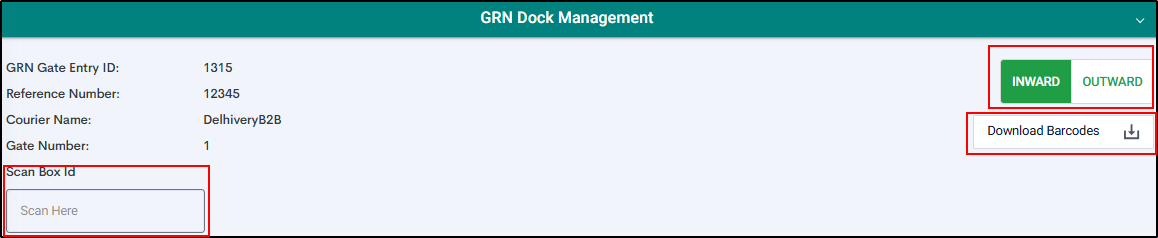
Two scanning options are available: INWARD & OUTWARD
INWARD Scanning
Use this option when scanning system-generated inward box IDs.
- Click
Download Barcodes - System generates barcode PDFs for inward boxes.
- Print and paste inward barcode labels on shipment boxes.
- Scan inward box IDs in the
Scan Box IDfield. - System generates one barcode label for each inward box.
OUTWARD Scanning
Use this option when scanning:
- vendor shipment box labels,
- manufacturer box labels,
- original shipment box IDs.
During scanning, vendor box IDs get mapped with internally generated inward box IDs.
Next Step
Video
FAQs
- OUTWARD Scanning uses vendor/manufacturer shipment box labels.
- INWARD Scanning uses system-generated inward box IDs.