Customer level B2B Return Order (Without Invoice Number) - Consolidated Return Flow

Overview
- Returns include items from different orders and invoices.
- Multiple returns are shipped together in one consignment.
- Mapping each item to its original invoice and tracking it in the ERP is not possible.
- Return Business Order creation
- (Optional) Gate Entry
- Goods Receipt Note (GRN) and Quality Check (QC)
- Credit Note generation
When to Use This Feature
- A B2B customer sends consolidated returns.
- The return shipment contains items from multiple invoices.
- Invoice-level mapping is not possible.
- You need to inward the stock and issue a Credit Note.
Pricing Support
Pricing in this flow works based on the configuration defined in the Pricing Master.
- SKU-wise pricing
- Flat Discount pricing
- Net Of Taxes (NOT)
- Net Realization Value (NRV)
Prerequisites
This workflow must be enabled via support tool at the required location level.
Ensure the B2B customer is already created in the system.
Refer: Create Customers using Customer Master
Ensure Credit Note series is configured.
Refer: Invoice, Credit Note, Return Challan Series Configuration
Workflow
Step 1: Create Return Business Order
+ (Create Button) → Return Business Order
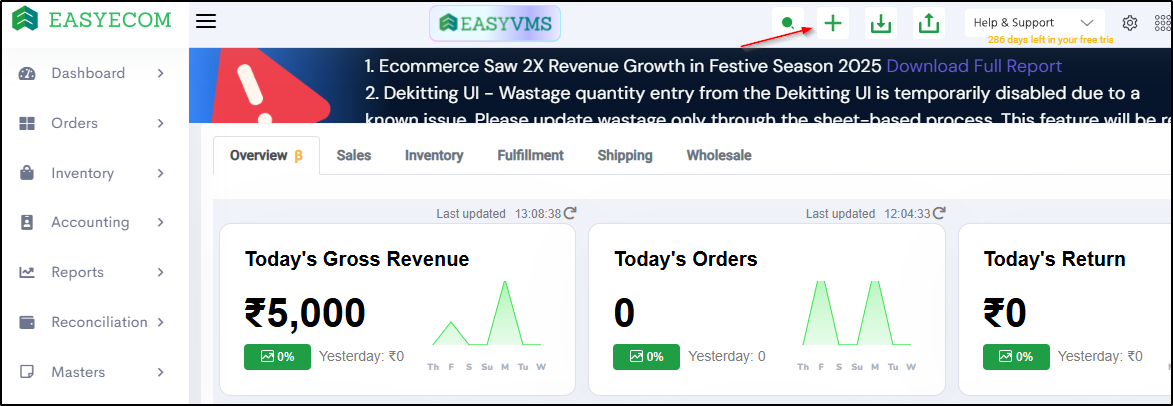
Old B2B: Return Business Order Creation
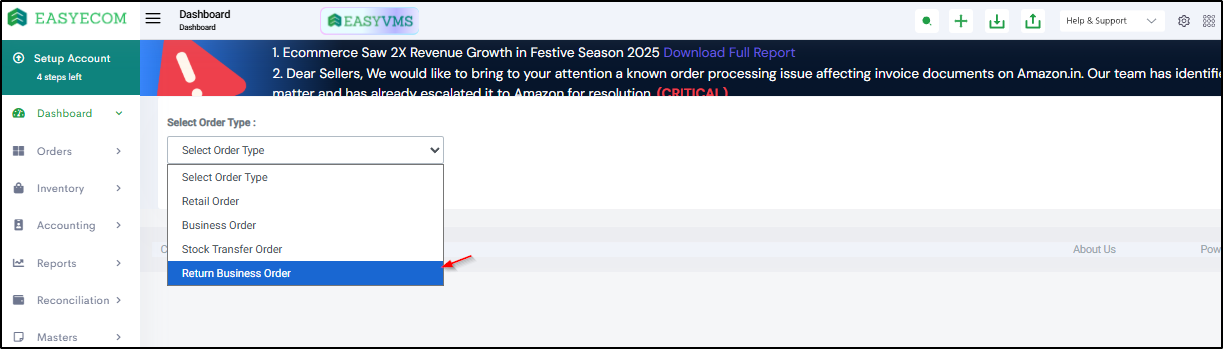
New B2B: Return Business Order Creation
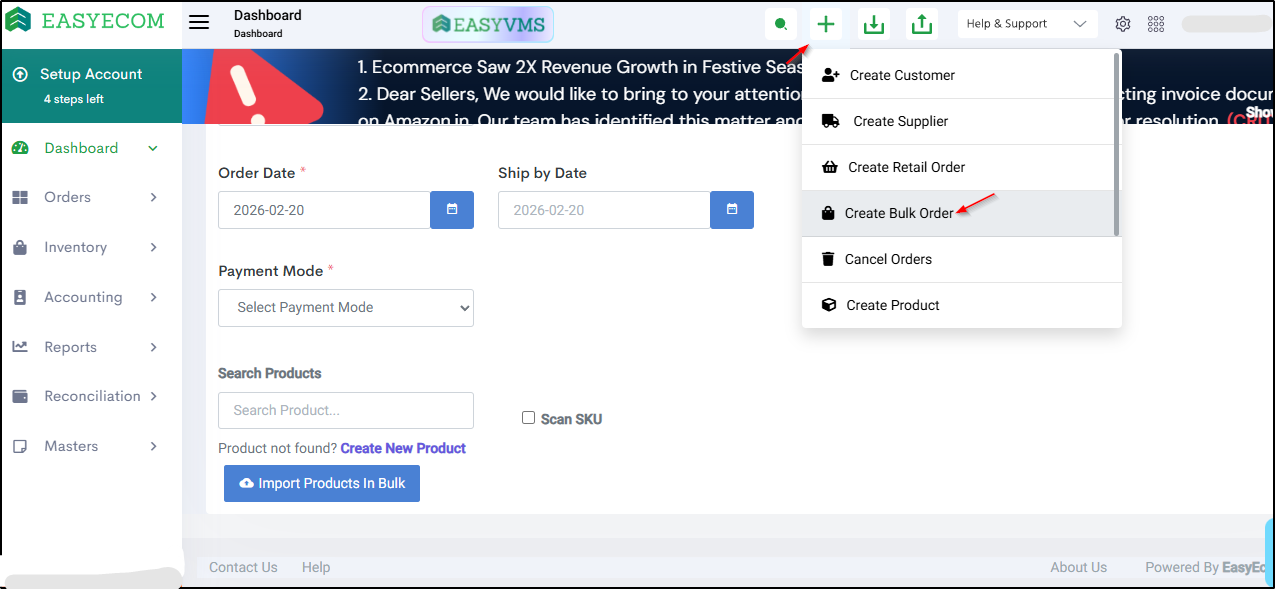
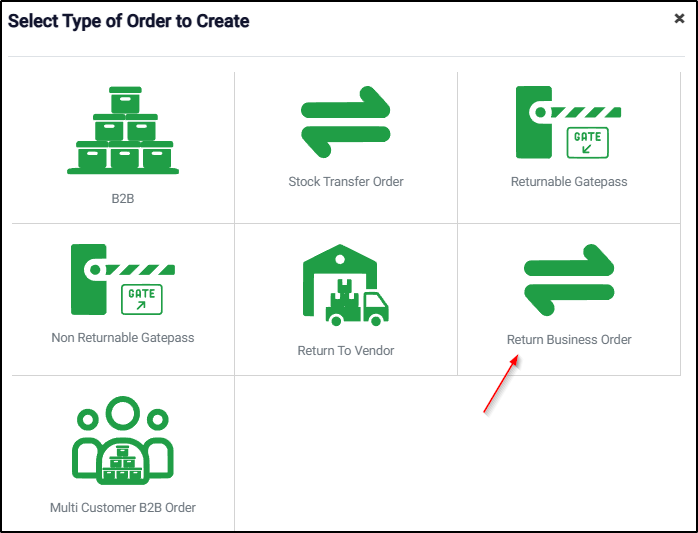
- Select Return Business Order
- Select B2B Customer
- Add products manually or upload via sheet.
- Enter quantity.
- Enter unit price (if pricing master calculation is not selected).
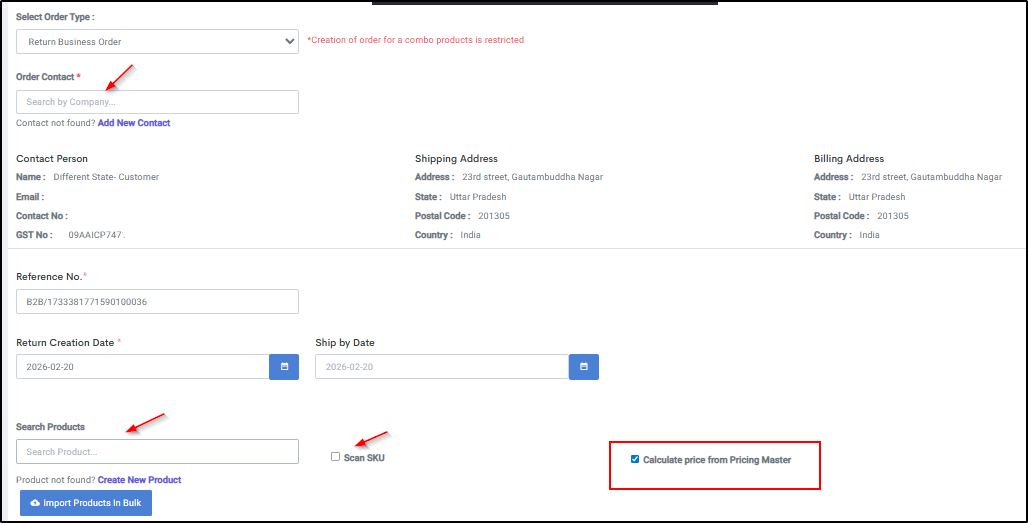
- A B2B Pending Return Order is created.
Step 2: (Optional) Gate Entry
Order→ Return Gate Entry → Create Gate Entry

Screenshot Required
- B2B Gate Entry
- Customer Wise
- The Return Reference Number must match an existing pending return.
- The Return Reference Number cannot be duplicated for the same customer.
- A Gate Entry ID is generated.
- Box barcodes are generated based on the entered number of boxes.
Step 3: View Pending B2B Return Orders
Inventory → Purchase Orders → B2B Return Orders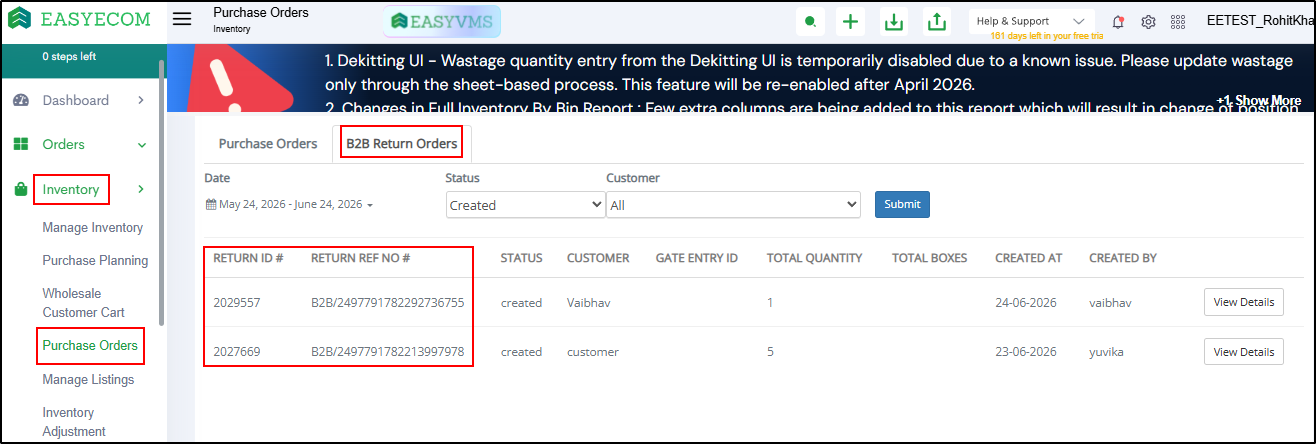
- Created - The return order is created but no Goods Receipt Note (GRN) has been started.
- In Progress - At least one quantity has been received through GRN, but the return is not fully completed.
- Completed - All quantities for all SKUs in the return order have been fully received and GRN is closed.
- Start Goods Receipt Note (GRN)
- Download Return CSV - This file contains SKU-level details along with Quality Check (QC) pass and QC fail quantities.
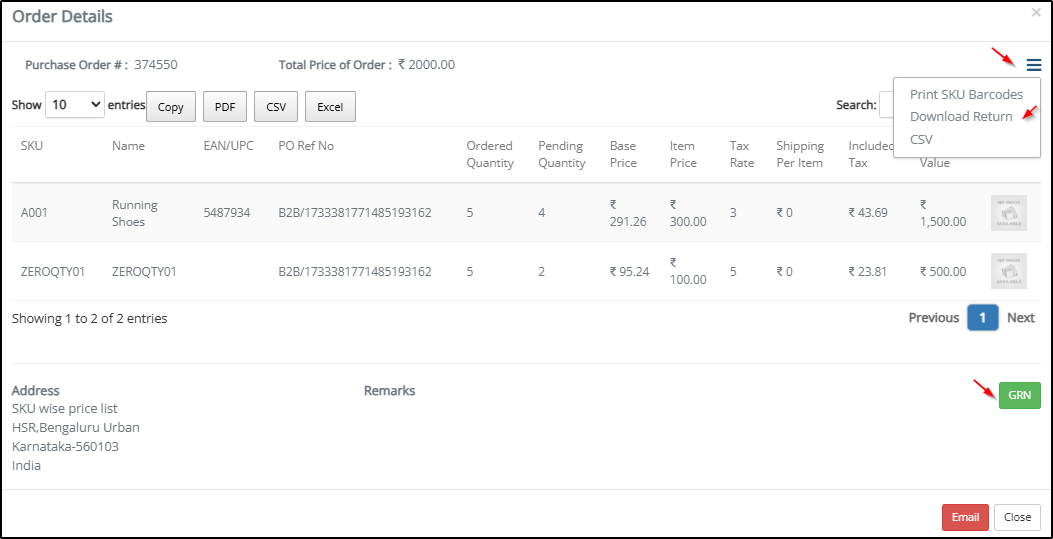
Step 4: Goods Receipt Note (GRN) and Quality Check (QC)
- Web portal
- HHT device (if enabled for the location)
- Return Reference ID is auto-filled.
- If Gate Entry was created, Box ID scanning is available.
- Batch code, or
- Maximum Retail Price (MRP) manually.
If not, MRP must be entered manually.
Auto Dekitting Handling for Kit SKU
- De-kitting Behavior Based on QC:
- If QC is completed during GRN:
- De-kit order is created immediately after GRN
- If QC is pending during GRN:
- De-kit order is not created at that time
- De-kitting is triggered only after QC is completed separately
- De-kit Order Processing:
- Navigation: Manage Inventory → De-kitting (completed orders)
- Putaway for de-kitted inventory is performed under:
- Putaway → De-kit
- In both cases, de-kitting occurs only after QC pass.
- Applicable for Lottable as well as Non Lottable
- GRN against Kit SKUs is supported only for B2B Return Orders.
- It is not supported for other Purchase Order types such as vendor POs.
- Not supported for serialized inventory
- Supported only for non-serialized inventory (including 3PL accounts)
- If any Kit is marked as damaged or fails Quality Check (QC) during GRN, automatic dekit will not be performed.
Credit Note Generation
- A Credit Note can be generated by clicking on the three-dot icon against the closed GRN.
- After generation, the same three-dot icon provides the option to download the Credit Note PDF.

How Credit Note Amount Is Calculated
The Credit Note amount depends on whether Pricing Master is used.
- The price entered during Return Business Order creation is used as the final value.
- The system does not use GRN MRP or override this value.
- If you want a specific Credit Note amount, you must enter that value while creating the return order.
- The system calculates the Credit Note based on the MRP available during GRN.
- Pricing Master rules (such as discount) are applied on this MRP.
- If MRP is changed during GRN, the updated value is used for calculation.
- Discount (manual or Pricing Master) is considered in calculation but not shown separately in the Credit Note document.
- Shipping charges are not considered in order creation or Credit Note calculation.
-
Old B2B with Old Pricing Master is not supported in this return flow
Credit Note Structure
- Credit Note Number (from configured Credit Note series)
- Invoice Number → Not Applicable
- Buyer’s Order Number → Not Applicable
- Buyer’s Reference → Return Business Order Number
- Customer Reference Number (CRN) → From integrated GSP Service
- Acknowledgement Number → From integrated GSP Service
Automated Email Reminder
- Customer Name
- Return Reference Number
- GRN ID
- Open Since Date
- “Dekitting” entry shows increase in child SKU inventory after de-kitting
- “Used in Kitting” shows consumption of child SKUs during kit creation
- “Physical DeKits Produced” shows the quantity of child SKUs generated from de-kitting
Report
- This report provides a consolidated view of Customer Level B2B Return Orders created without a forward invoice number, along with Return Order, Gate Entry, GRN, and Credit Note details.
- Records are available in the report only after a Credit Note has been generated for the return.
Steps
- Navigate to Reports → Reports Dashboard → B2B Customer Return Report.
- Select the required date range.
- Queue the report.
- Once processing is complete, download the report from Exports.
Report Notes
- Records are available in the report only after a Credit Note is generated.
- A single return order can have multiple Credit Notes. Each Credit Note appears separately in the report.
- The following columns contain Credit Note level values:
- Total_Credit_Note_Amount
- Total_Credit_Note_Amount_Excluding_Tax
- Total_Tax
- If multiple SKU rows belong to the same Credit Note, these values are populated only in the first SKU row of that Credit Note.
- SKU-level values are available in:
- Item_Credit_Note_Amount
- Item_Credit_Note_Amount_Excluding_Tax
- Item_Tax
- For 3PL accounts, an additional 3PL Warehouse column is available.
FAQs
1. Can I search Return Business Orders from the Global Search bar?
No. They are available only under Inventory → Purchase Orders → B2B Return Orders.
2. Can multiple Credit Notes be generated for one return?
Yes. Multiple Goods Receipt Notes (GRNs) can be created for one return order, and each can generate a separate Credit Note.
3. Is Gate Entry mandatory?
No. Gate Entry is optional.
4. Will Net Of Taxes (NOT) or Net Realization Value (NRV) pricing work in this flow?
No. Only SKU-wise and Flat Discount pricing types are supported.
5. Will shipping charges be adjusted in this process?
No. Shipping charges are not handled in this module.
6. Will this impact my B2B sales or tax reports?
No. This process adjusts inventory inward and generates a Credit Note but does not create a new sales invoice.
8. Why are Total Credit Note Amount, Total Credit Note Amount Excluding Tax, and Total Tax blank for some rows?