In-House Kitting using Kitting Station Orders
Overview
In-House Kitting allows sellers to assemble KIT SKUs internally by consuming available child SKU inventory, without creating any outbound shipment or customer delivery.
This process uses a special internal B2B order type called Kitting Station Order and is designed only for inventory transformation (child → kit) within the warehouse.
Process at a glance
- Create Kitting Station Order (KIT SKUs only)
- Generate Picklist
- Pick Child Inventory
- Perform Directed Kitting / Bulk Kitting (based on configuration)
- Handle QC (if applicable)
- Complete Production Putaway for kits
Use Case
Use this flow when:
- KIT SKU already exists
- Child SKUs have sufficient available inventory
- Kits need to be assembled inside the warehouse
- No customer shipment, packing, or invoicing is required
Required Settings
In-House Kitting is available only when the following settings are enabled at company level.
lite_kit_enabled = 1
enableInHouseKitting = 1
newb2b = 1direct_kitting = 1
(If direct_kitting is enabled, the system uses the Directed Kitting flow during kit production)
Additional Conditions:
- This feature works only on New B2B
- If
enableInHouseKittingis disabled, the Kitting Station Order option will not be visible. - If
kitBulkModeis disabled, Bulk Kitting screen will not be available.
Please connect with EasyEcom Support / your Account Manager to have this feature activated for your account
Clarifications
- This flow is not meant for customer fulfillment
- This flow is not outbound B2B shipping
- This flow does not use boxes, packaging, or dispatch
- The B2B order used here is internal only (customer = self)
Limitations
- Supported only under New B2B framework. Legacy/Old B2B is not supported
- Only KIT SKUs can be added to this order type
- Box creation, box closing, packaging, and shipment steps are intentionally hidden
Step 1: Create a Kitting Station Order
Navigation Click on (+) icon on Home Page
Create Bulk Order
Select Order Type
From the order type selection screen, choose: Kitting Station Order
Order creation rules
- Order Type: Kitting Station Order
- SKU: KIT SKU only (mandatory)
- Child SKUs are auto-derived from the kit definition
- Payment Mode: Mandatory
- Multiple KIT SKUs can be added in one order
If Required to add KIT products in Bulk:
Click on Import Products in Bulk > Download Template > Fill in the Template & Upload
Step 2: Locate the created order
Navigation: Orders → B2B Orders → View Orders
Apply filters:
- Order Type = Kitting Station Order
- Date range (as required)
Step 3: Create Picklist
Against the Kitting Station Order, click Create Picklist
What happens:
- Picklist is generated
- Order is auto-assigned to a batch (New B2B behavior)
Step 4: Perform Picking (Child Inventory)

The picking process (Web or HHT) follows the standard New B2B picking flow.
Navigation: Orders → B2B Orders → Order Batches B2B
- Locate the batch created for the order
- Download/Print the Picklist and note the Picklist ID
- Perform picking (via Web or HHT)
Only child SKUs are picked. Kits are not physically picked.After picking is completed, the system runs a batch consolidation job that groups picked child inventory into valid batch combinations for Directed Kitting. The job status can be viewed from View Imports.
Step 5: Open Kitting Station screen
After picking is completed:
Navigation:
Orders → B2B Orders → Packing and Sorting (OR)
Click the Batch ID against the required order in Order Batches B2B.
Scan the Picklist ID.
The system opens the Kits in this Picklist screen.
Step 6: Perform Directed Kitting
When Direct Kitting is enabled, the system displays the child SKU batches that must be used to assemble the kit.
How Directed Kitting works
- After picking is completed, the system groups picked child inventory batch-wise.
- Each card displays the child SKU batches available for kit assembly.
- The value displayed as Produced/Available indicates:
- Produced = Kits already assembled
- Available = Kits that can still be assembled using the displayed child SKU batches
Example: 0/3 = 0 kits produced from a batch combination that can produce 3 kits. - Users must physically assemble kits according to the child SKU batches displayed by the system.
Assemble Kits
Enter the number of kits physically assembled in the Kits Produced field.
Click I have physically kitted as Directed by System.
System Behavior
- Consumes child inventory from the displayed child SKU batches.
- Updates Kitting History after each successful kitting action.
- Displays the next available batch combination, if additional kits remain to be produced.
The required kit quantity may be distributed across multiple child SKU batches.
After processing the displayed batch combinations, the next batch combination is automatically displayed until all kits are assembled.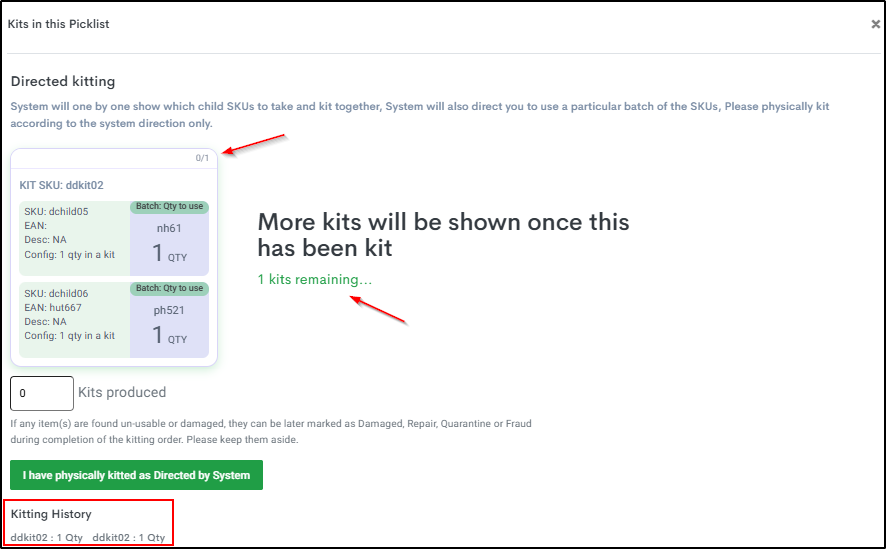
After completing remaining kits
Step 7: Perform Bulk Kitting
Kitting can be performed using different execution modes depending on system configuration.
Bulk Mode
What is Bulk Mode?
Bulk Mode allows users to produce kits by entering quantity, without scanning individual child SKUs or kit SKUs.
This mode is designed for:
- High-volume kitting
- Faster operations
- Reduced scanning effort
What you see on screen
For each KIT SKU:
- Total Kit Quantity
- Kit Quantity Produced
- Quantity To Kit (input)
- Status
You can:
- Enter quantity per kit
or - Use “Quantity To Kit (Apply to all kits)”
Complete Bulk Kitting
- Enter required quantity in Quantity To Kit
- Click Kit Bulk
The Complete Kitting action is used when the order is partially kitted and the user wants to close the kitting process after QC handling.
System behavior:
- Consumes required child SKU quantities
- Produces KIT SKUs
- Updates Kitting status automatically
Bulk kitting runs as a background job.
Users can track completion status from View Imports
Kitting Status meanings
| Status | Meaning |
|---|---|
| Kitting Pending | No kits produced yet |
| Partially Kitted | Some kits produced |
| Kit Completed | All required kits produced |
Step 8: Handle Partial Kitting (QC Selection)
Use Complete Kitting when picked inventory remains after Directed Kitting is completed and the kitting process needs to be closed.
Navigation: Orders → B2B Orders → View Orders
Apply filters:
- Order Type = Kitting Station Order
- Date range (as required)
Click the Action button against the Kitting Station Order and select Complete Kitting.
The system opens the QC Selection screen.
You must mark QC for picked items using:
- QC Pass
- Damaged
- Repair
- Quarantine
- Fraud
QC can be done:
- By entering quantities directly (OR)
- By selecting the QC status, scanning the SKU, and selecting the corresponding batch

QC is required only for picked items. Remaining picked inventory that is not consumed during Directed Kitting can be processed through the Complete Kitting action.
If a child SKU is not picked (via Web or HHT), the system does not ask for QC for that item and the quantity is automatically released back to available inventory.
Outcome
- QC Pass → normal putaway
- QC Fail → QC Failed putaway
- Unpicked quantity → released back to available inventory
Step 9: Putaway of Produced Kits
After kitting:
- Produced kits move to Production Putaway
- Kits are not available until putaway is completed
Navigation: Inventory → Putaway → Production Putaway
- Against the displayed Kit, Click on Bin
- Enter qty and Bin code.
- Submit
After this step, KIT inventory becomes available.
Inventory impact after kitting
After Production Putaway is completed:
FAQs
Q1. Can I add normal or child SKUs in Kitting Station Order?
No. Only KIT SKUs are allowed.
No. Only KIT SKUs are allowed.
Q2. Why is the Kitting Station Order option not visible?
Required backend settings may not be enabled or New B2B may not be active.
Required backend settings may not be enabled or New B2B may not be active.
Q3. Why does kit inventory not show immediately after kitting?
Kits become available only after Production Putaway is completed.
Kits become available only after Production Putaway is completed.
Q4. Is shipment or invoicing generated in this flow?
No. This is an internal inventory transformation process.
No. This is an internal inventory transformation process.
Q5. Why is the system showing multiple Directed Kitting cards for the same KIT SKU?
The system groups picked child inventory batch-wise. If the required child inventory exists across multiple batch combinations, multiple Directed Kitting cards may be displayed one after another until the required kit quantity is completed.
The system groups picked child inventory batch-wise. If the required child inventory exists across multiple batch combinations, multiple Directed Kitting cards may be displayed one after another until the required kit quantity is completed.
Related Articles