Integrating Return Prime with EasyEcom

Integrating Return Prime with EasyEcom

By following the below-mentioned procedure you can easily integrate Return-Prime with EasyEcom. 

To connect EasyEcom account on Return Prime, Please follow below steps:-

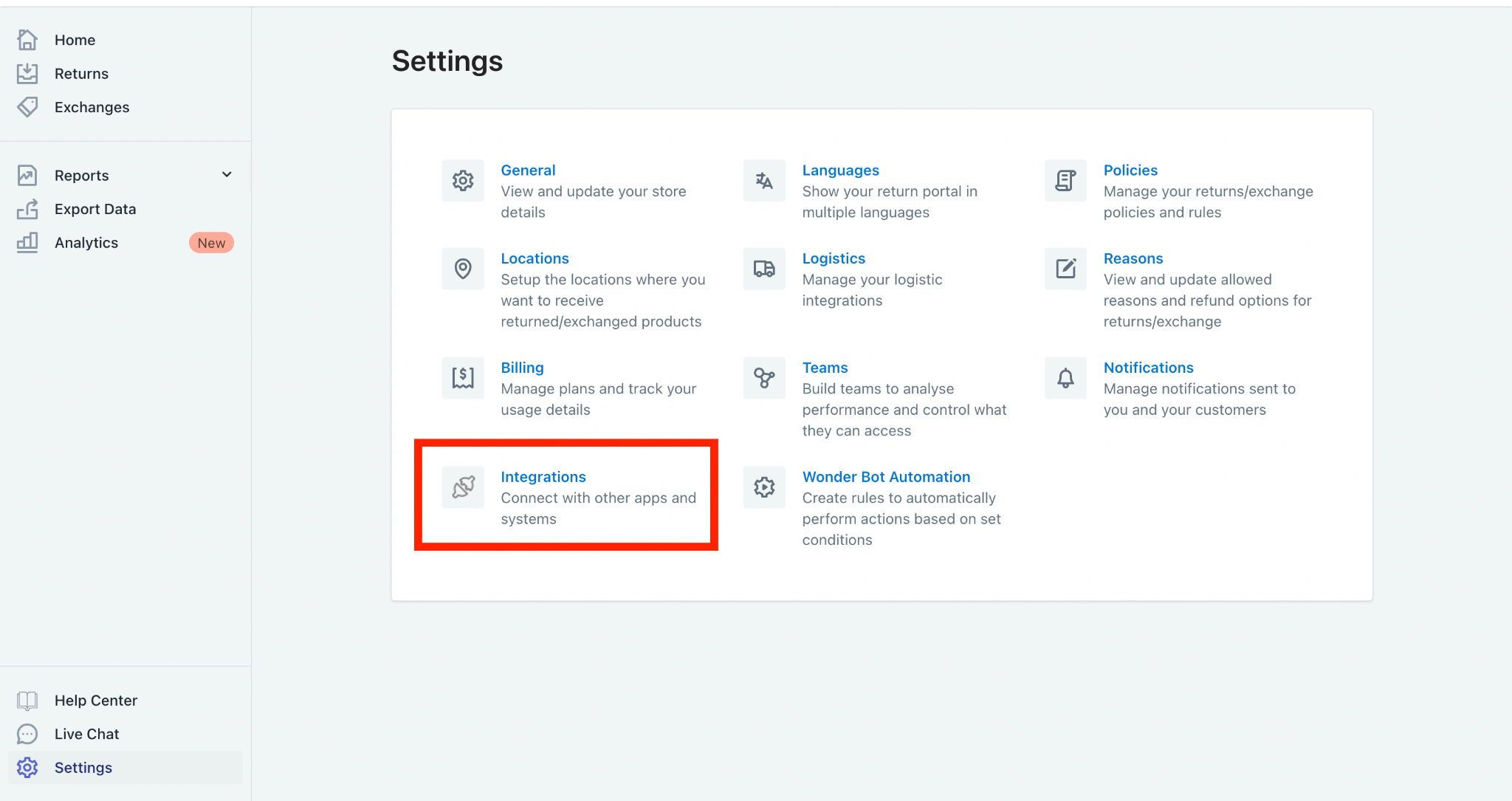
Step 1: Click on the Settings option on the bottom left corner.


Step 2: Navigate to the “Integrations” option available in Settings.
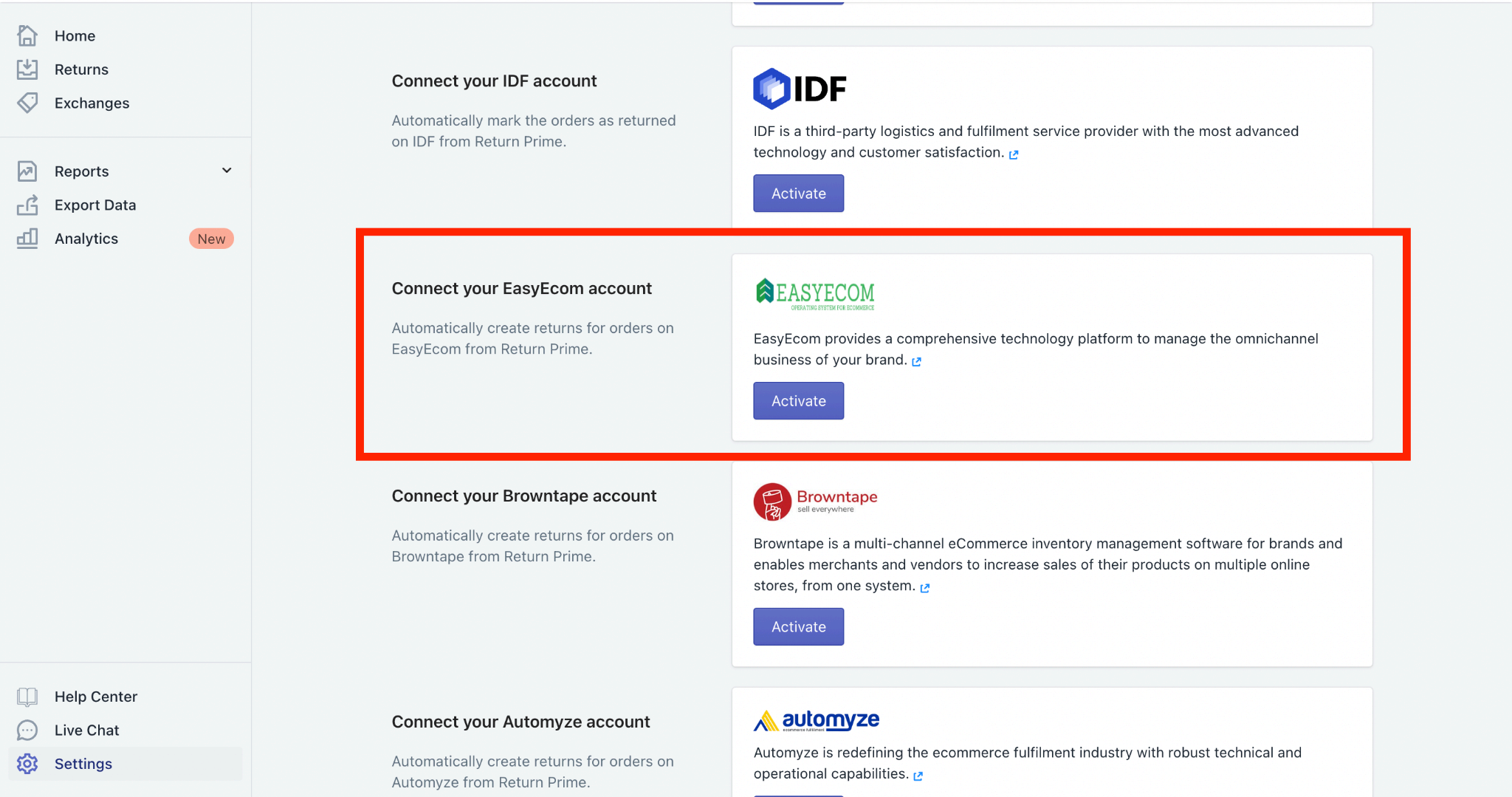
Step 3: Scroll down to the page and find EasyEcom integration, please click on the activate button
Step 4: Enter the EasyEcom Credentials: 

Please follow the UserRole article for further steps.
Enter the Easy Ecom Credentials and hit on save button.


Once it is connected then Return Prime will mark the item as “Pending return” on the
EasyEcom dashboard as soon as the request is approved. We will also pass the AWB
details on EasyEcom dashboard.

You have now successfully integrated Return Prime with EasyEcom.


    • Related Articles

    • Syncing Marketplace Data from EasyEcom into Tally ERP 9/Prime

      Once you integrate your Tally ERP 9/Prime account with EasyEcom, the system will sync your products listed on EasyEcom, sales invoices, credit notes, payments, and marketplace deduction fees across marketplaces into Tally ERP 9/Prime on a real-time ...
    • Integrating Ekart with EasyEcom

      Overview Ekart can be integrated with EasyEcom as a shipping carrier to manage shipment creation, shipment tracking, and return processing. Once integrated, EasyEcom can create shipments in Ekart and receive shipment status updates. When to Use This ...
    • Integrating Marketplace using EasyEcom Standard APIs

      You can easily integrate your marketplace with EasyEcom by following the process explained in this video and/or the integration workflow document shared with you.  Marketplace Integration Frequently Asked Questions  1. Do we need to add carrier ...
    • Integrating Wishlink with EasyEcom

      This guide explains how to integrate Wishlink Marketplace with EasyEcom to manage listings, inventory, orders, fulfillment, cancellations, and returns. Step 1: Click on the Settings (⚙️) icon in the top-right corner Step 2: Click on 'Add Channels' ...
    • Integrating DHL Express with EasyEcom

      By following the below-mentioned procedure you can integrate DHL Express with EasyEcom and configure it as a shipping carrier for order fulfillment. Step 1: Navigate to 'Masters > Carrier Master' In the toggle menu, navigate to: Once you click on ...