Integrating Wishlink with EasyEcom
This guide explains how to integrate Wishlink Marketplace with EasyEcom to manage listings, inventory, orders, fulfillment, cancellations, and returns.
Step 1: Click on the Settings (⚙️) icon in the top-right corner
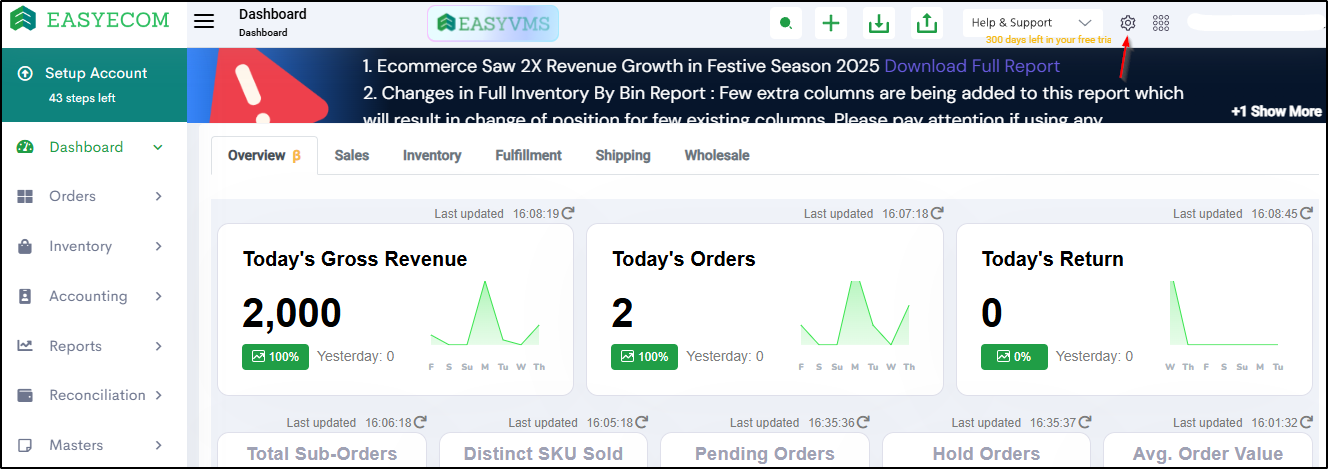
Step 2: Click on 'Add Channels'
You will be redirected to the channel selection page. Scroll to find channel name.
Step 3: Select 'Wishlink'
Once you click on it the following pop-up will appear:
Enter the API username & password and Click on Add Channel.
Keep Create Products Automatically disabled unless specifically instructed.
API Username & Password Details
The Username and Password entered here must be the EasyEcom API User credentials.
- The API user & password must be created inside EasyEcom ensuring the API user has the required permissions for integration.
Refer to the following article for creating and defining user roles: Adding and Defining User Role in EasyEcom
Location Key Requirement
The channel is added under a specific warehouse location.
The same Location Key must be shared with the Wishlink team.
To find the Location Key, Click on:
Profile (Top Right Corner) → Copy Account Token / Location Key from the respective warehouse.
Details to be Shared with Wishlink
- API Username
- API Password
- Location Key
- X-API-Key
- Marketplace ID
Order Flow
- Orders are created on Wishlink.
- Orders are synced to EasyEcom through the Create Order API.
- AWB details are assigned using the Assign AWB API.
- Tracking updates are shared from Wishlink to EasyEcom.
- Cancellation updates are handled through API and webhook.
- Returns are initiated using the Mark Pending Return API.
- Manifested updates are shared from EasyEcom to Wishlink through webhook.
- Partial Cancellation and Partial Return are supported in this integration.
Integration Touchpoints
| S No | API / Webhook Name | Direction | Trigger Type | Remarks |
|---|---|---|---|---|
| 1 | Get Auth Token | Marketplace → EE | API | Used for authentication |
| 2 | Create Listings | Marketplace → EE | API | Creates or updates listings |
| 3 | Get Product Master | EE → Marketplace | API | Used to fetch product master data |
| 4 | Create Order | Marketplace → EE | API | Creates orders in EasyEcom |
| 5 | Assign AWB | Marketplace → EE | API | Assigns AWB and shipment details |
| 6 | Update Tracking Status | Marketplace → EE | API | Shares tracking updates |
| 7 | Mark Pending Return API | Marketplace → EE | API | Used for return processing |
| 8 | Cancel Order API | Marketplace → EE | API | Used for order cancellation |
| 9 | Cancel Order Webhook | EE → Marketplace | Webhook | Shares cancellation updates |
| 10 | Update Inventory Webhook | EE → Marketplace | Webhook | Shares inventory updates |
| 11 | Manifest Order Webhook | EE → Marketplace | Webhook | Shares manifested order updates |
| 12 | Mark Return Webhook | EE → Marketplace | Webhook | Shares return updates |
Webhook Endpoints
Update Inventory
https://api.wishlink.com/api/oms/webhooks/easyecom/inventory/
Order Cancel
https://api.wishlink.com/api/oms/webhooks/easyecom/order-cancel/
Return
https://api.wishlink.com/api/oms/webhooks/easyecom/return/
Manifested
https://api.wishlink.com/api/oms/webhooks/easyecom/manifested/
Important Operational Notes
- This is a Marketplace Shipped integration.
- Orders are synced from Wishlink to EasyEcom through API.
- AWB details are assigned using the Assign AWB API.
- Tracking updates are shared from Wishlink to EasyEcom.
- Cancellation is supported through API and webhook.
- Returns are processed using the Mark Pending Return API.
- Partial Cancellation and Partial Return are supported in this integration.