Integrating HyugaLife with EasyEcom

Integrating HyugaLife with EasyEcom

By following the below-mentioned procedure you can easily integrate HyugaLife with EasyEcom. 

Step 1: On the dashboard, click on the “Three dots aka meatball menu”


Step 2: Click on the “Account Settings” option

Once you click on the meatball menu, you will see the following fly-out menu:
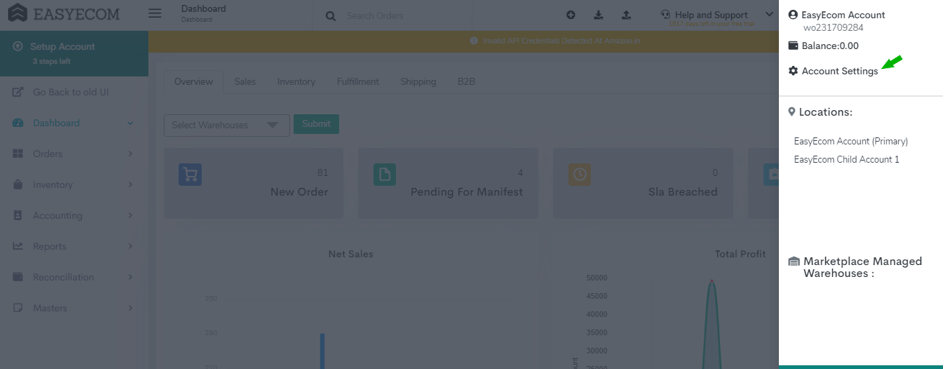


Here click on the “Account Settings” option. 

Step 3: Click on “Add Channels”

Once you click on Account Settings you will be navigated to the following page:


Here click on “Add Channels”.

Step 4: Select Marketplace “HyugaLife”

Once you click on “Add Channels” you will be navigated to the following page:


Here please click on the “HyugaLife” button. 

Once you click on it the following pop-up will appear:


You are required to enter your Username, Password and Seller ID in the required columns. 

Please reach out to HyugaLife Team for  API Username, Password and Seller ID(location code)


Once you have entered all the details in the pop-up click on the “Add Channels” button. 


Note: If you enable the "Create Products Automatically" option, EasyEcom will automatically create a Master SKU of all your listed SKUs in HyugaLife. This is the easiest way to mirror the catalogue from HyugaLife to EasyEcom.

If you choose to not enable “Create Products Automatically”, you will have to upload the product master manually and map it with your HyugaLife listings. 


You have now successfully integrated HyugaLife with EasyEcom.


    • Related Articles

    • Integrating Ekart with EasyEcom

      Overview Ekart can be integrated with EasyEcom as a shipping carrier to manage shipment creation, shipment tracking, and return processing. Once integrated, EasyEcom can create shipments in Ekart and receive shipment status updates. When to Use This ...
    • Integrating Marketplace using EasyEcom Standard APIs

      You can easily integrate your marketplace with EasyEcom by following the process explained in this video and/or the integration workflow document shared with you.  Marketplace Integration Frequently Asked Questions  1. Do we need to add carrier ...
    • Integrating DHL Express with EasyEcom

      By following the below-mentioned procedure you can integrate DHL Express with EasyEcom and configure it as a shipping carrier for order fulfillment. Step 1: Navigate to 'Masters > Carrier Master' In the toggle menu, navigate to: Once you click on ...
    • Integrating Wishlink with EasyEcom

      This guide explains how to integrate Wishlink Marketplace with EasyEcom to manage listings, inventory, orders, fulfillment, cancellations, and returns. Step 1: Click on the Settings (⚙️) icon in the top-right corner Step 2: Click on 'Add Channels' ...
    • Integrating GrowSimplee/Blitz with EasyEcom

      By following the below-mentioned procedure you can easily integrate Grow Simplee with EasyEcom. Step 1: In the toggle menu, navigate to “Masters>>Carrier Master” Step 2: Click on the “Add New” button Once you click on Carrier Master you will be ...