Integrating Mr.Voonik with EasyEcom

Integrating Mr.Voonik with EasyEcom

Step 1: Please login to your account in EasyEcom and go to Account settings.


Step 2: Click on Add channel and select the marketplace you want to integrate (Mr.Voonik in this case)

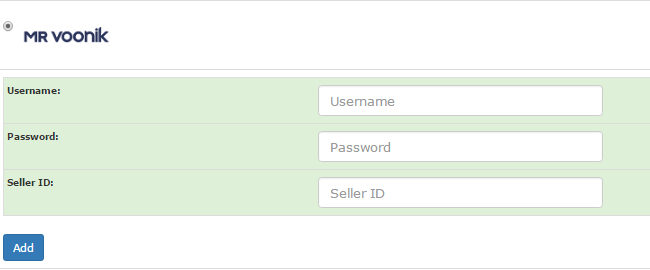
You will see a drop down that needs to be filled with information.



Step 3: For Seller Id, login into your Mr. Voonik Panel.


Step 4: Click on your company name and select "Integrate Channel Partner".


Step 5: You will get your Seller id. ( Key id is Seller id). 


  • Fill all other details and click on “Add Channel And Continue”.

  • Mr.Voonik will be added to your list of accounts


    • Related Articles

    • Integrating Voonik with EasyEcom

      Step 1: Please login to you EasyEcom account and go to Account settings. Step 2: Click on Add channel and select the marketplace you want to integrate (Voonik in this case) You will see a drop down that needs to be filled with information. Step 4: ...
    • Integrating Ekart with EasyEcom

      Overview Ekart can be integrated with EasyEcom as a shipping carrier to manage shipment creation, shipment tracking, and return processing. Once integrated, EasyEcom can automatically create shipments in Ekart and receive shipment status updates. ...
    • Integrating Marketplace using EasyEcom Standard APIs

      You can easily integrate your marketplace with EasyEcom by following the process explained in this video and/or the integration workflow document shared with you.  Marketplace Integration Frequently Asked Questions  1. Do we need to add carrier ...
    • Integrating DHL Express with EasyEcom

      By following the below-mentioned procedure you can integrate DHL Express with EasyEcom and configure it as a shipping carrier for order fulfillment. Step 1: Navigate to 'Masters > Carrier Master' In the toggle menu, navigate to: Once you click on ...
    • Integrating GrowSimplee/Blitz with EasyEcom

      By following the below-mentioned procedure you can easily integrate Grow Simplee with EasyEcom. Step 1: In the toggle menu, navigate to “Masters>>Carrier Master” Step 2: Click on the “Add New” button Once you click on Carrier Master you will be ...