How to Create and Use a Service SKU for Shopify in EasyEcom
Overview
A Service SKU is a non-inventory product type used to record service-related charges separately from physical products.
For Shopify, you can map Service SKUs to the following charges:
- Shipping Charges
- COD Charges
Once mapped, these charges appear as separate line items in the EasyEcom order and invoice.
Availability: Service SKU is currently available in the pilot phase. Contact the EasyEcom team for consultation and feature enablement.
When to Use
Use a Service SKU when you want to:
- Record shipping charges separately from physical products.
- Record COD charges separately from physical products.
- Apply a tax configuration to service charges.
- Display service charges separately on invoices.
Prerequisites
Before using Service SKU, ensure that:
- Service SKU creation is enabled for your account.
- Service-charge-to-SKU mapping is enabled for the Shopify channel.
- Account configuration: The EasyEcom team must configure the required backend settings, including
routing.split, with a supported value (1or2). - New Tax Master is enabled.
Contact the EasyEcom team if any of these requirements are not enabled for your account.
Process Overview
Follow these steps to use Service SKU:
- Create a Service SKU in EasyEcom.
- Map the Service SKU to Shopify charges.
- Sync a Shopify order containing the mapped charge.
- Review the Service SKU in the synced order.
- Review Service SKU behavior during order splitting, cancellation, and returns.
Workflow
Step 1: Create a Service SKU
Go to: Masters → Product Master → Create Products → Add a New Product
- Select Service SKU as the product type.
- Enter the Service Name.
- Enter a unique SKU Code.
- Enter a unique SAC Code.
- Select the required Tax Mode:
- Fix Tax Rate: Applies the selected predefined tax rule.
- Highest Product Tax Rate: Applies the highest tax rate used by the physical products in the order to the Service SKU.
- Save the Service SKU.
After saving, the Service SKU can be mapped to applicable Shopify charges.
Step 2: Map the Service SKU to Shopify
- Go to Settings → Add Channel.
- Open the existing Shopify channel.
- Locate the Service SKU Mapping section.
- Select the Service SKU for:
- Shipping Charges
- COD Charges
- Click Save Mapping.
Once mapped, the Service SKU is automatically added to the EasyEcom order when the corresponding charge is received from Shopify.
Step 3: Service SKU in Shopify Orders
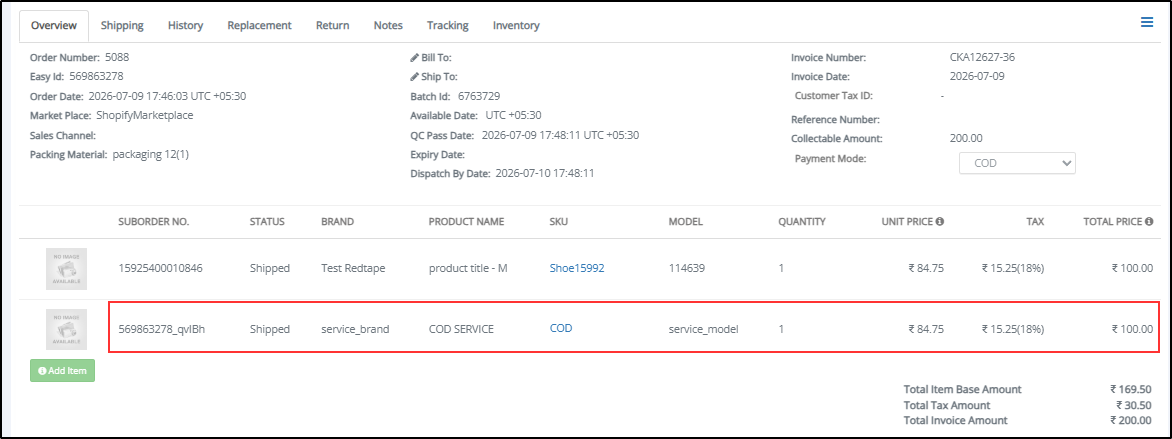
When a Shopify order containing a mapped service charge is synced to EasyEcom, the applicable charge is added as a separate Service SKU line item.
- Shipping Charges are added using the mapped shipping Service SKU.
- COD Charges are added using the mapped COD Service SKU.
- The Service SKU appears separately from physical products.
- If a mapped charge is not present in the Shopify order, its corresponding Service SKU is not added to the EasyEcom order.
Example
If a Shopify order contains a shipping charge, the mapped shipping Service SKU appears as a separate line item alongside the physical products.
Sample Shopify Order with Service Charge
Step 4: Service SKU During Order Splitting
A Service SKU cannot be split independently into another order.
When a physical-product order is split into multiple orders, the Service SKU charge is distributed across the physical product quantities.
Example
- Total physical item quantity: 4
- Total service charge: ₹100
- Service charge per item: ₹25
If one split order contains 2 physical items:
- Service charge allocated to that split order: ₹50
- Remaining service charge: ₹50
The remaining ₹50 is allocated to the physical items in the other split order.
Step 5: Service SKU During Cancellation
The Service SKU behavior during cancellation depends on:
- The quantity of physical items remaining in the order.
- The payment type.
- The cancellation condition.
The Service SKU may be handled differently when physical items are partially cancelled or when the last physical item is cancelled.
Cancellation Through Returns & Replacement
Cancellation of a Service SKU through Orders → Returns & Replacement may be restricted when the invoice contains both physical products and a Service SKU.
Step 6: Credit Note Behavior
The credit note includes the eligible product amount but excludes the Service SKU amount.

Example
| Component | Amount |
|---|---|
| Product amount | ₹900 |
| Service charge | ₹100 |
| Original order value | ₹1,000 |
| Credit note amount | ₹900 |
The ₹100 service charge is excluded from the credit note.
Important Rules and Limitations
- Service SKUs are non-inventory items and are not included in inwarding, picking, or packing.
- Service SKUs cannot be used in kits, combo items, or SKU swaps.
- Service SKUs cannot be created through CSV or API.
- Tax Mode and SAC Code can be edited for existing Service SKUs.
- A Service SKU cannot be split independently; its charge is distributed across physical product quantities.
- Cancellation and return behavior depends on the applicable conditions.
- Service SKU charges are excluded from credit notes generated for returns.
FAQs
Q1. Which Shopify charges can be mapped to a Service SKU?
You can map Service SKUs to Shipping Charges and/or COD Charges
Q2. Can I create a Service SKU through CSV or API?
No. Service SKUs must be created through the Product Master UI.
Q3. Which tax modes are available?
Fix Tax Rate: Applies the selected predefined tax rule.
Highest Product Tax Rate: Applies the highest tax rate among the products in the order.
Q4. Can a Service SKU be used in a kit or combo item?
No.
Q5. What happens if a Shopify order does not contain the mapped charge?
The Service SKU mapped to that charge is not added to the order.
Q6. Can an existing Service SKU be edited?
Yes. The tax mode and SAC Code can be edited for an existing Service SKU.
Q7. Can a Service SKU be cancelled?
Service SKU cancellation depends on the remaining physical item quantity, payment type, and applicable cancellation condition.
Q8. Can a Service SKU be split separately?
No. A Service SKU cannot be split independently. During order splitting, the service charge is distributed across the physical product quantities.
Q9. Is the Service SKU amount included in the credit note?
No. The Service SKU amount is excluded from the credit note generated for returns.