Integrating Custom Quick-Commerce Channel with Easyecom
Overview
Custom Quick-Commerce Integration allows sellers to import Purchase Orders (POs) received from Quick Commerce partners through email into EasyEcom. After the integration is configured, EasyEcom reads the forwarded PO emails, extracts the Purchase Order details, and creates B2B orders in EasyEcom. This integration can be configured only in the Primary Location.
Prerequisites
Before configuring the integration, ensure that:
- Purchase Orders are received through email from the Quick Commerce partner.
- Auto email forwarding is configured to email.int@easyecom.io.
- The sender and recipient email combination is unique for this integration.
- Product SKUs are mapped in EasyEcom.
- If orders need to be fulfilled from child warehouses, configure Pincode Mapping after creating the integration.
Workflow
Step 1: Open Add Channels
Go to: Settings → Add Channels
Step 2: Select Custom-Quick-Commerce
Select Custom-Quick-Commerce from the available integrations.
Step 3: Configure the integration
Enter the required details.
| Field | Description |
|---|---|
| Sender Email IDs | Enter the email IDs from which Purchase Orders are received. Multiple email IDs can be added as comma-separated values. |
| Recipient Email IDs | Enter the email IDs that receive Purchase Orders from the Quick Commerce partner. Multiple email IDs can be added as comma-separated values. |
| Payment Mode | Select the payment mode applicable to the imported orders. |
| Sales Channel | Select an existing Sales Channel or click + to create a new one. |
Click Add Channel.
Step 4: Configure Pincode Mapping
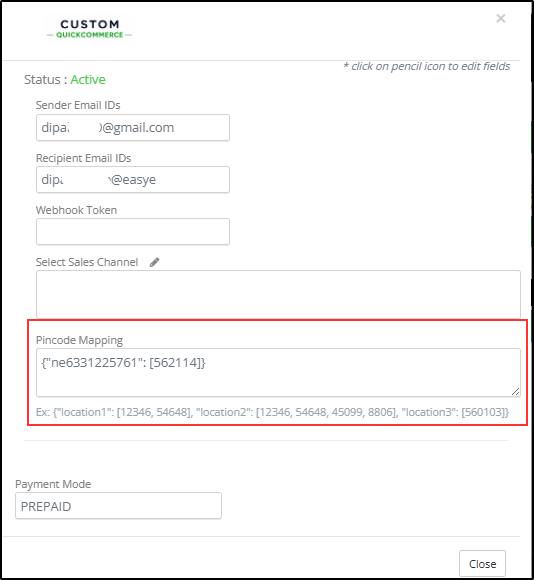
After adding the Custom-Quick-Commerce channel, configure Pincode Mapping to route Purchase Orders to the correct warehouse. Pincode Mapping determines the warehouse that will fulfill orders received from each customer location.
- In Settings → Add Channels, click the Custom-Quick-Commerce channel that you added.
- In the Pincode Mapping field, map the Location Token to the warehouse pincode(s) in the following format.
{ "<Location Token>": [<Warehouse Pincode>]}
Example
{ "ne6331225761": [562114]}
Click Update.
Find the Location Token (Location Key)
The Location Token is the unique identifier of a location in EasyEcom. To find it, go to Masters → Location Master and copy the value from the Location Key column.
Purchase Order Import Flow
After the integration is configured:
- The seller's mailbox automatically forwards Purchase Order emails to EasyEcom.
- EasyEcom reads the forwarded emails.
- The system identifies Purchase Orders.
- Purchase Order details are extracted.
- A B2B order is created in EasyEcom.
- If Pincode Mapping is configured, the order is routed to the mapped warehouse.
Important Points
Configuration
- Configure the integration only in the Primary Location.
- Manual email forwarding is not supported. Configure automatic email forwarding for the recipient email IDs.
- The combination of Sender Email IDs and Recipient Email IDs must be unique for each Custom Quick-Commerce integration.
- Multiple sender email IDs and recipient email IDs can be configured.
- Product SKUs must be mapped in EasyEcom before Purchase Orders can be imported.
Order Import
- Purchase Orders are imported only when the email subject contains "PO", "Order", "PR", or "Purchase Order"
- Orders are imported using the Purchase Order date available in the PO.
- If Auto Assign Inventory For B2B Orders at Order Import is enabled, imported orders are created in Open Orders.
- If Auto Assign Inventory For B2B Orders at Order Import is disabled, imported orders are created in Unapproved Orders.
- If a Purchase Order is fully imported, it can be processed partially or completely.
- A partially imported Purchase Order cannot be processed.
System Behaviour
- If no Pincode Mapping is configured, orders are imported into the Primary Location.
- The integration supports processing multiple Purchase Order attachments received in a single email.